 Search
  1-844-PUSHPAY
 How Planning Center, Tithely, and Pushpay handle giving reports
Planning Center, Tithely, and Pushpay compared on donor reports, contribution statements, and accounting exports, plus six reports to test in a demo.
Internal giving reports show pastors and the board how giving compares with last year and which donors have stopped giving. The contribution statement goes to the donor, and it should list every gift they made during the year it covers. And the accounting handoff, the export or integration that moves giving data into your accounting software, has to show the bookkeeper that each bank deposit matches the gifts behind it.
All three are built from the same gift records. A giving platform can handle one of them well and leave your staff building the other two in a spreadsheet. If you carry finance and administration on your church’s staff, all three run through your office.
Accuracy is part of stewardship. A church that asks people to give owes them an accurate record of what they gave, and it owes the board a straight account of where the money went.
This comparison covers how Planning Center Giving, Tithely, and the Pushpay® platform handle internal giving reports, contribution statements, and the accounting handoff, in that order. Before you compare features, decide which of the three is your priority this year, since the three platforms handle each one differently.
Church donor reporting at a glance
How the three platforms compare on reporting needs
Everything in the table comes from each vendor’s public product, pricing, and help pages as of October 2026, and processing fees are billed on top of any subscription. Vendors change prices. Confirm current figures with each vendor before you sign.
| Planning Center Giving | Tithely | Pushpay | |
|---|---|---|---|
| What it is | Giving app built on People, Planning Center’s free church database | Giving platform with a $0 giving plan; Church Management plan for member records | Giving platform with in-house payment processing; shares donor records with the Pushpay ChMS in ChurchStaq® |
| Internal giving reports | Dashboard filtered by date range and campus; reports by donation and by donor, filtered by campus, fund, label, and payment source | Custom giving report filtered by fund, location, payment type, and date, with saved views and a printable summary | Financial Overview dashboard, daily payment and weekly giving summaries, and plain-language giving questions answered as visuals; donor development dashboard on the Advanced package |
| What statements include | Successful donations in the date range; failed, refunded, and in-progress donations left out; gifts from outside payment sources can be added | Donations to tax-deductible funds | Online, offline, and non-cash gifts recorded in Pushpay, including non-financial assets |
| Households and joint givers | Donors can be combined onto one statement | Current help guide says 2025 statements are individual only, with no merged household option | Household statements, viewable by the household’s primary and secondary contacts |
| Statement delivery | Email with a download link that expires after two weeks, or a print file; past statements stay in the donor’s Church Center profile | Email to every donor in a statement batch, or print the whole batch; donors without an email address get a printed statement | Email, the church app, or print; donors open current and past statements on the web or in the app |
| Cash and checks | Cash and check batches; scanned checks auto-match to donor records | Admin Batch Giving; check and envelope scanning with remote deposit | Gift entry and batch reconciliation; check deposit from $0.29 a check |
| Deposits and fees | Deposits (called payouts) every two days, with processing fees deducted | Fee and net-amount columns in reports; the QuickBooks sync posts fees to an expense account | Full gift amount deposited; processing fees invoiced separately |
| Accounting handoff | CSV exports; no QuickBooks integration | QuickBooks Online integration (not QuickBooks Desktop); CSV exports | QuickBooks, Sage Intacct, and Aplos integrations; CSV and native file exports |
| Pricing | Free up to 10 donations a month, then up to $239 a month; 2.15% + $0.30 per card gift, $0.30 per ACH gift | $0 for giving; 2.9% + $0.30 per card gift, 1% + $0.30 per ACH gift | Quoted after a demo; no setup fees |
The main differences to assess before choosing
Start with the deposits and fees row, because it decides how much entry work your bookkeeper does each week to make the general ledger match the bank. When a deposit arrives as the gift total minus processing fees, the deposit is smaller than the gifts behind it, and someone on staff records the fee difference as an expense for every deposit. When the full gift total arrives and fees come as a separate bill, the deposit equals the gift total.
The households row decides whether spouses who give from two cards and file one tax return can get a single combined statement.
The accounting row comes down to who moves giving data into your accounting software: a staff member with a CSV file, or an integration.
The platforms’ internal giving reports differ as well. They’re easier to judge in a demo than in a table.
What your church needs from donor reports
Contribution statements and internal giving reports
Internal giving reports come in two kinds, donor reports and financial reports, and they answer different questions about the same gifts. A donor report is about people: who gave, how often, who gave for the first time this year, and whose recurring gift stopped. A financial report follows the money into each fund, onto each deposit, and into the general ledger.
The contribution statement sits apart from both. It’s written for the donor, and the IRS sets part of what it has to say. (For the receipt rules themselves, see how church giving software handles tax receipts.)
Score donor reports, financial reports, and statements separately. A vendor with a polished statement workflow can still leave whoever prepares the board report building manual giving reports from raw exports every month.
Decide which staff can see individual donors’ names and amounts before you decide which reports you need. Weekly totals by fund can go to the whole leadership team. Individual amounts are different. The case for keeping them with the staff who process gifts and send statements is strong, because a senior pastor can lead a church’s giving well without ever seeing a ranked list of top donors. Where to draw that line is a judgment call for your leadership, not a software default. Ask each vendor how its roles and permissions separate the staff who see fund totals from the staff who see individual donors’ names and amounts.
Gift types, donor records, and fund-level detail
The reasonable assumption is that a statement shows everything a donor gave. It doesn’t. A statement shows every gift the giving platform recorded as successful, dated inside the statement’s date range, in a fund the statement is set to include.
Each of those conditions can keep a gift off a statement. A refunded gift should come off the statement. A recurring payment that failed and was never made up shouldn’t appear either, and it won’t on a platform that leaves out failed donations. Pending gifts are the year-end risk: a card or ACH gift still processing on the day you generate statements may be left off the statement. Waiting until mid-January to generate statements gives those gifts time to finish processing.
A single gift can carry dates in two different years. A statement uses the date a gift was received, while a deposit-based export dates the same gift by when it reached the bank. A check from the last Sunday in December can sit on one year’s statement and the next year’s deposit report. Both dates are correct.
Donor records need cleanup before any statement run. Duplicate profiles split one person’s giving across two statements, so merge duplicates instead of deleting one. Missing email and mailing addresses sort donors into those you can email, those you have to mail, and those you can’t reach at all.
Funds are the last check. A restricted fund has to keep the same name on the giving page, the statement, and the general ledger. Non-deductible gifts, such as qualified charitable distributions from an IRA, need a deliberate decision about whether they print on the statement.
Exports, integrations, and accounting handoffs
Ask how a gift gets from the giving platform into your general ledger. The answer is either an export or an integration.
An export puts the work on a staff member. That staff member sets the filters, downloads a CSV file, matches its columns to the chart of accounts, and imports it into the accounting software, every week or every month. The result is only as consistent as that person’s routine.
An integration moves giving data on its own, and the questions to ask the vendor get more specific. Ask whether it sends each gift or a total per fund per batch, whether it creates a record for every donor in your accounting software or keeps donor names in the giving platform, how it books processing fees, and where a gift to an unmapped fund goes. Get those answers in writing. If your board or an outside auditor asks where a restricted gift went, these answers decide how long it takes to show them.
QuickBooks users have one more question for each vendor. Some integrations support QuickBooks Online and not QuickBooks Desktop, so name your version when you ask.
For which way data moves between each platform and the other software your church runs, see church software integrations compared.

Planning Center, Tithely, and Pushpay compared
Planning Center reporting and statement workflow
Planning Center fits if your priority is the contribution statement, and your staff already works in People, Planning Center’s free church database.
Planning Center builds its statement workflow around donors finding their own statements. Emailed statements carry a download link that expires after two weeks, but donors can always log in to Church Center and find every past and current statement in their profile.
Before staff send statements, Planning Center Giving warns about donations that would be left off them, such as uncommitted batches or transactions still in transit. Statements leave out failed, refunded, and in-progress donations, and staff can add another payment source to include gifts received outside Planning Center. Non-deductible donations like donor-advised fund gifts and qualified charitable distributions can be included or left off the statement.
Once a statement is emailed, staff can’t edit or delete its label, date range, or contents, and the email itself can’t be resent. Proofread the statement batch before sending it.
Planning Center’s internal reports start from a dashboard filtered by date range and campus. Reports by donation and by donor can be filtered by campus, fund, label, stamp (a status Giving assigns and staff can’t edit), and payment source, and the donor report can narrow to donors who gave for the first time in the date range. Donor lists in People group givers by amount given, fund type, or recurring status. Every report prints or exports to CSV. Cash and checks go in through batches, and scanned checks auto-match to donor records.
Planning Center hands giving data to your accounting software through CSV files. It has no QuickBooks integration. Online gifts run through Stripe, and payouts (Planning Center’s term for deposits) arrive in your bank account every two days, minus processing fees. Planning Center suggests recording one journal entry per deposit, and the CSV export for a single payout lists gifts by deposit date, not by the date each gift was received.
Planning Center’s deposit-level approach suits a bookkeeper who already posts one entry per deposit. It asks more of a bookkeeper who wants each gift in the general ledger.
Tithely reporting, exports, and statements
Tithely fits if your priority is the accounting handoff, and you want transaction-level detail in reports and a QuickBooks Online sync on a giving plan with no monthly fee.
The custom giving report lives under Giving > Transactions. Staff filter by fund, location, product, payment type, and date, then pick and reorder columns. The columns go well past names and amounts. They include fees, net amount, covered fees (fees donors chose to pay), check number, refund date, refunded amount, and transaction status. Saved views reopen a report without rebuilding it. A CSV download requires a date range. The summary report prints to PDF.
Bank deposit reports open each deposit into its transactions, download as CSV, and carry a “Mark as Done!” button that marks the deposit reconciled and records the date.
Tithely’s QuickBooks Online integration covers most transaction types. It syncs card and ACH donations, cash and check gifts entered through Admin Batch Giving, pledge transactions, and event payments, though not Tithely Pay transactions or pledge goals. Each Tithely fund maps to a QuickBooks income account, and processing fees post to an expense account you choose. The first sync imports the last thirty days of deposits, new deposits import as they occur, and staff get an email report after each import.
Before you connect the integration, decide how to handle funds you haven’t mapped and donors QuickBooks doesn’t recognize. Gifts to an unmapped fund land on a default line item. And the integration creates a new QuickBooks customer for any donor without a matching customer record. Donor names end up in your accounting software. The integration works with QuickBooks Online only.
Statements are a manual step. Staff generate them, and Tithely’s current help guide says to wait until January 16 for 2025 statements and to merge duplicate profiles first. Only donations to tax-deductible funds appear on Tithely statements. Staff can email the whole statement batch or print it all at once, and donors without a valid email address get a printed copy.
Household statements are the open question. Tithely’s older help articles describe choosing between household and individual statements, while its current help guide says the new 2025 statements “will all be individual,” with no merged household option “at this time.” Ask Tithely which option applies to your 2026 statements.
Pushpay donor reporting and contribution statements
The Pushpay platform fits if your priorities are internal giving reports that cover every kind of gift and an accounting handoff where each deposit matches the gifts inside it.
Pushpay tracks online, offline, and non-cash gifts in one donor history, from Sunday’s checks to gifts of stock and crypto. Staff record cash and checks through gift entry and batch reconciliation, and check deposit starts at $0.29 a check.
Annual giving statements draw on those same gift records. A donated asset, for instance, is listed on the donor’s yearly statement. Donors can open their statements on the web or in the church app, and donors who are the primary or secondary contact on a household can see household statements there too. Donors who give as guests, without a Pushpay account, still receive a statement at year-end.
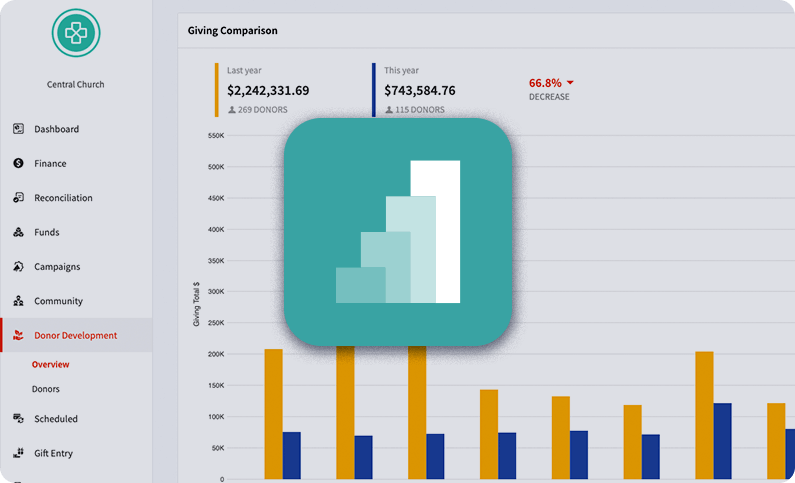
For leadership, Pushpay’s church reporting tools include a Financial Overview dashboard, a Daily Payment Summary, and a Weekly Giving Summary. Staff can also type a question in plain language (“which donors gave last year but not this year?”) and get the answer back as a visual. At a multi-campus church, each campus manages its own giving, and leadership sees reporting for every location on one dashboard.
ChurchStaq® packages at the Advanced level and up include Pushpay Insights, which puts giving data next to attendance and serving data in one view. Its giving snapshots show recent new donors, at-risk donors, giving per attendee, and online versus in-person giving, and its trend charts compare giving year over year. Clicking a metric opens a filtered list of the people behind it, ready to download or add to a follow-up process in the ChMS. Insights is read-only. Staff make corrections in Pushpay Giving or the ChMS, and Insights reflects them.
Asbury United Methodist Church had run the Pushpay ChMS since 2017 and Pushpay Giving since 2020 when Insights launched. The church wanted an easier way to see the health of a congregation of more than 2,600 members and spot people who might be disengaging.
“Insights is going to become a major part of our weekly reporting routine here at Asbury,” said David Miller, the church’s executive director, when the tool launched.
For the bookkeeper, the Pushpay platform deposits the full amount donors gave and invoices processing fees separately, so each deposit equals the gifts behind it. The bookkeeper records fees from the invoice, not from each deposit. Pushpay’s QuickBooks Online integration sends a total for each fund in each batch to QuickBooks and keeps donor details in Pushpay. Donor names stay out of the general ledger. A bookkeeper who wants each gift in the general ledger would import it from Pushpay’s CSV exports instead. The Pushpay integrations directory also lists Sage Intacct and Aplos.
Package placement and pricing need a conversation with the Pushpay team. Financial reporting and the tracking of online, offline, and non-cash gifts start in Core, while the donor development dashboard sits in Advanced and multiple bank accounts and per-campus designations sit in Complete. Pushpay pricing is quoted after a demo, with no setup fees, so ask which package includes each report your church needs.
Which platform fits your finance workflow?
When donor records and church management need to connect
A giving report can tell you a household stopped giving. It takes the member database to tell you whether that household also stopped attending.
All three platforms can put giving data next to a member record, and they do it differently. Planning Center Giving attaches every gift to the same People record the rest of Planning Center uses. Tithely connects giving to its People database on the Church Management plan. On ChurchStaq, Pushpay Giving and the ChMS share one profile for each person, so a change in someone’s giving appears beside their attendance, groups, and serving.
Can you keep the ChMS you already run? Often, yes. Pushpay Giving connects to several church management systems, including Planning Center, Rock RMS, and Ministry Platform, and the Pushpay integration with Planning Center syncs profiles in both directions and sends donations one way, from Pushpay into Planning Center Giving and People. For how each platform tracks donors once giving and member records connect, see church donor management platforms compared.
When accounting exports or integrations shape the decision
Start with the month-end close. Each platform fits a different way of getting giving data into the general ledger, and the routine your bookkeeper uses today points to one of them:
- Deposit-level journal entries from CSV files: Planning Center’s payout reports fit that routine, and deposits arrive net of processing fees.
- Gift-level detail and donor records synced into QuickBooks Online: Tithely’s integration sends both and maps each fund to an income account.
- Fund batch totals in QuickBooks Online, with donor details kept in the giving platform: the Pushpay platform, which also connects to Sage Intacct and Aplos and deposits the full gift amount.
If you run fund accounting software, confirm that the vendor integrates with it by name. If you’re still on QuickBooks Desktop, ask each vendor whether its integration supports Desktop.
Questions to test with each vendor
Bring your church’s own numbers to every demo, starting with last month’s fund totals and one recent deposit. Ask the vendor to run these six reports while you watch:
- Giving by fund for last month. Put the report next to the income your bookkeeper posted to each fund for the same month. Restricted funds should match to the dollar.
- One recent deposit, broken into the gifts inside it. If the deposit is smaller than the gift total, find the processing fees on the report and ask who records them in the general ledger, and in which account.
- A year-to-date statement for a household that gives jointly, by card and by check. Check that the card gifts and the check gifts both appear on one statement.
- Recurring givers whose recurring schedule ended or failed this year, with the date of each person’s last successful gift. Then ask what the platform does to follow up with those givers.
- Refunded, failed, and pending gifts from last December. Ask which of them would have printed on a statement run on January 2.
- Online versus in-person giving for the past twelve months, by campus if you have more than one. Hand the report to a board member and see whether they can read it without a staff member explaining it.
Time each report, and note any report the vendor’s rep can’t produce during the demo. If a platform switch is likely, also compare how each platform handles setup and the first reconciled deposit.
Then get each platform’s limits in writing: whether household statements are available this year, whether a statement can be corrected after it’s sent, which package includes each report, and exactly what the accounting integration sends.
Questions churches ask about donor reports
Can giving software combine online and offline gifts?
Yes, on all three platforms. Each one can hold cash, checks, and online gifts on the same donor record, as long as your staff enters the cash and checks in the giving platform and not in a separate spreadsheet. Planning Center posts cash and checks in batches and auto-matches scanned checks to donor records. Tithely records cash and checks through Admin Batch Giving, which its QuickBooks Online integration also syncs. The Pushpay platform records them through gift entry and batch reconciliation, and its check deposit starts at $0.29 a check.
What should a contribution statement include?
The IRS sets the contents. A donor needs a written acknowledgment to deduct any single contribution of $250 or more, and the IRS says it must include:
- Your church’s name
- The amount of any cash contribution
- A description, but not the value, of any noncash contribution
- A statement that no goods or services were provided, if none were
- A description and good-faith estimate of the value of any goods or services that were provided
- A statement that any benefit received consisted only of intangible religious benefits, if that applies
The statement also has to come from the church. On the Pushpay platform, the giving history in a donor’s login doesn’t meet IRS requirements for verifying a deduction, so donors need the church’s statement.
How should a church compare reporting and export options?
Run identical reports. Use the same report and the same dates on every platform, then compare what each platform required before it would export the report (Tithely’s CSV requires a date range, for instance). Check whether the export lists each gift or each deposit, and what reached the general ledger without anyone downloading a file.
Which donor management systems work best for churches on donor reporting?
It depends on your priority. If you want internal giving reports, contribution statements, and the accounting handoff built from one donor record, the Pushpay platform is the fit. It keeps online, offline, and non-cash gifts in one history, gives leadership dashboards and answers to plain-language giving questions, deposits the full gift amount, and connects to QuickBooks, Sage Intacct, and Aplos.
Planning Center Giving is a strong fit for a church already on People that wants donors to pull their own statements. Tithely fits a church that wants transaction-level exports and a QuickBooks Online sync on a free giving plan. For more detail, see how the Pushpay platform compares with Tithely and Planning Center.
Between now and January
Test giving reports in November. December’s giving is still ahead, and January’s statement run is close enough that what you learn in a demo will shape how you run it. Book a Pushpay demo and bring last month’s fund totals and one recent deposit. Ask to see that deposit broken into its gifts, and each fund total traced through to the general ledger.
Not ready for a demo? The self-guided Pushpay giving tour walks through the financial dashboards and giving statements at your own pace.